- PagerDuty /
- PagerDuty Supplier Hub /
- Supplier onboarding
Supplier onboarding in Coupa Supplier Portal (CSP)
The Supplier onboarding form is used to gather all required information for PagerDuty to onboard your company.
Legal entities
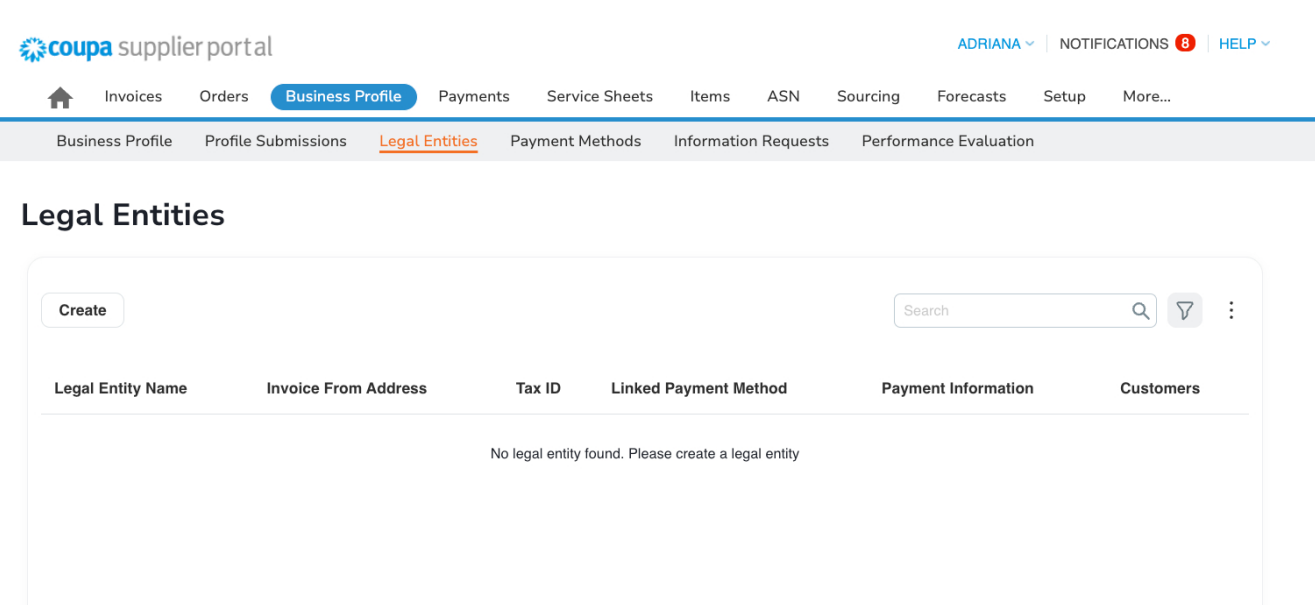
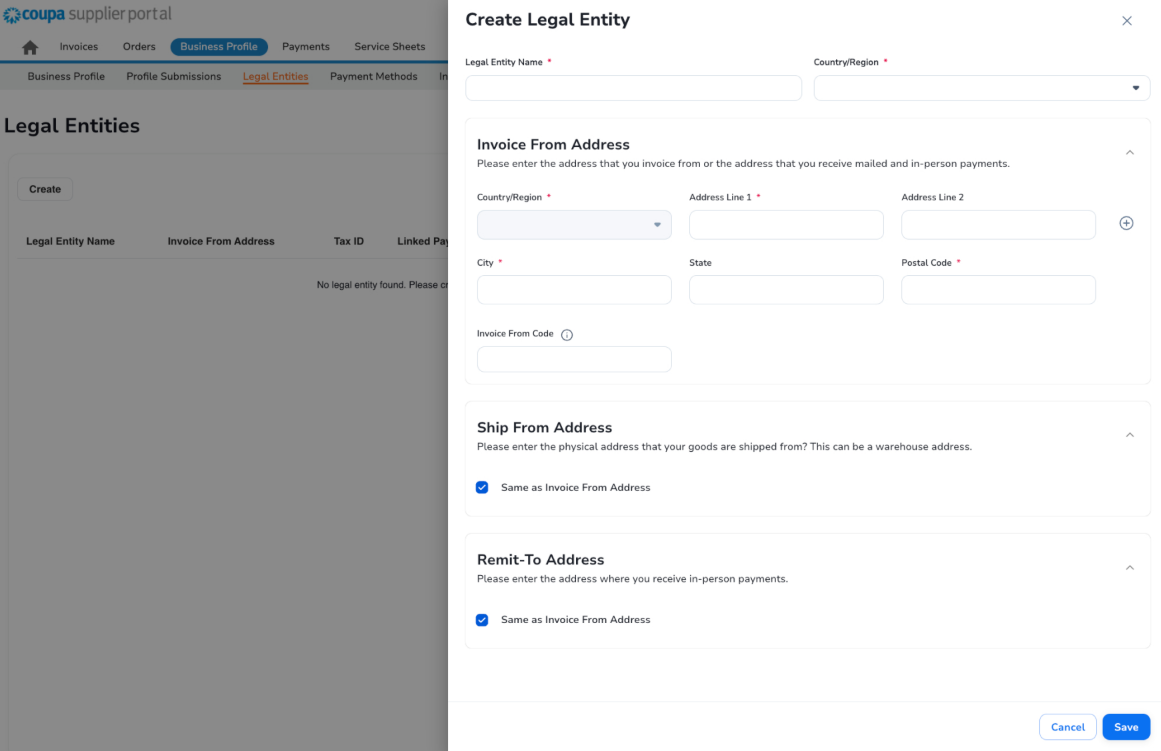
To begin the onboarding process, your company’s legal entity needs to be created in CSP. Start by navigating to Business Profile > Legal Entities and selecting “Create”. When entering your company’s primary remit-to address, please make sure it matches the primary address or the address listed in your banking letter, which you’ll be asked to provide later in the onboarding form.
Supplier onboarding form
Once you’re connected to PagerDuty in the Coupa Supplier Portal (CSP) and your legal entity is created, you are ready to start the Supplier onboarding process. You can access the onboarding form in any of these three ways:
- Click the link in the email you receive from Coupa to log in and open the form;
- In the Coupa Supplier Portal, click on Notifications (next to your name) and select the “Update your profile for PagerDuty” message to open the form;
- Go to Business Profile > Information Requests, select PagerDuty as the customer, and click on the NVR_ExternalSupplierProfile - External Form.

Vendor information
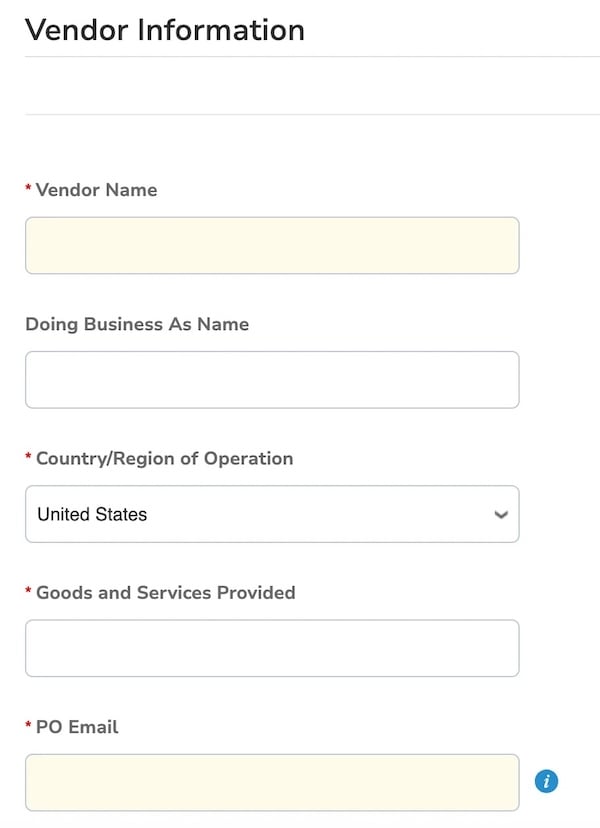
Fields marked with a red asterisk (*) are required.
- Vendor Name: Enter your company’s legal name as registered in your fiscal and government documents;
- Doing Business As Name (optional): If applicable and registered in your fiscal and government documents, provide the name your company operates under. This is not your company trade name.
- Country/Region of Operation: Enter your company’s country/region of operation
- Goods and Services Provided: The goods and/or services you are providing to PagerDuty (Example: Consulting services)
- PO Email: The email address provided will receive all the purchase orders issued to your company from PagerDuty
Primary contact
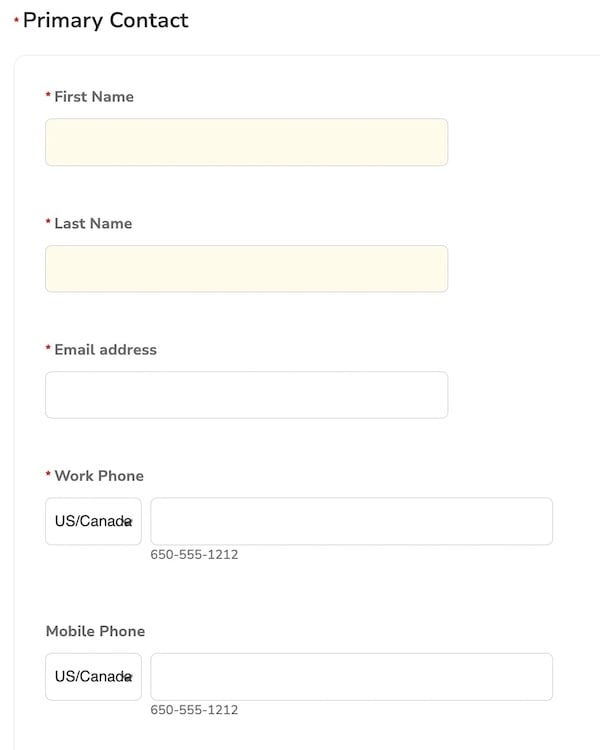
The Primary Contact is the main point of contact at your company for all communications from PagerDuty. This should be a department, team, or individual responsible for managing your Coupa Supplier Portal and who has access to your company’s payment and tax information (ideally someone from the finance department).
Please provide the following details for the Primary Contact: First Name, Last Name, Email Address, and Phone Number.
Primary address
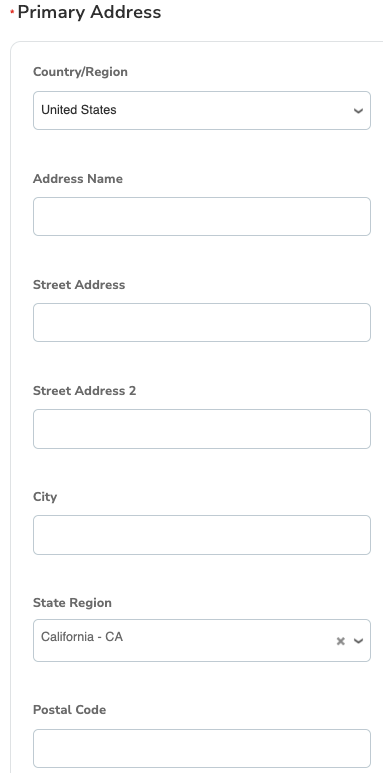
Enter your company’s main legal address, including country/region and state/region, as registered in your fiscal and government documents.
Diversity information
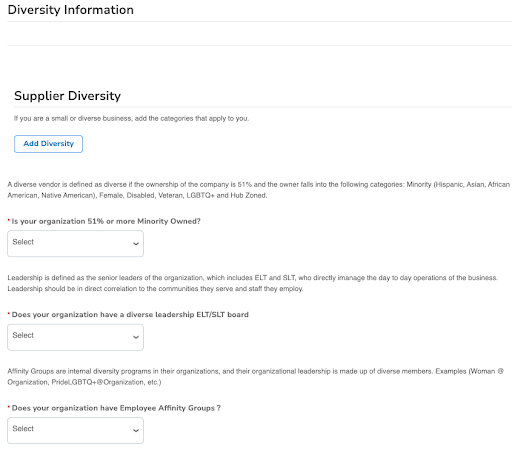
Please answer the three diversity questions by selecting Yes or No. If your company holds additional diversity certifications, click “Add Diversity” and specify the relevant categories. Be sure to attach the corresponding certificate as proof.
6: Payment information
6.1: Select the currency in which you will receive payment.
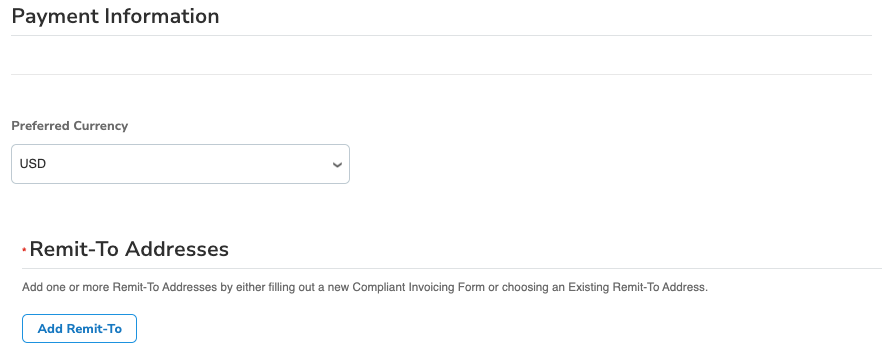
6.2: Add Your Company’s Remit-To Address
To get started, select “Add Remit-To” > Go to “Add payment method” and select “Bank Tranfers”
Note: make sure you always create a new Remit-To, and do not use previously created.
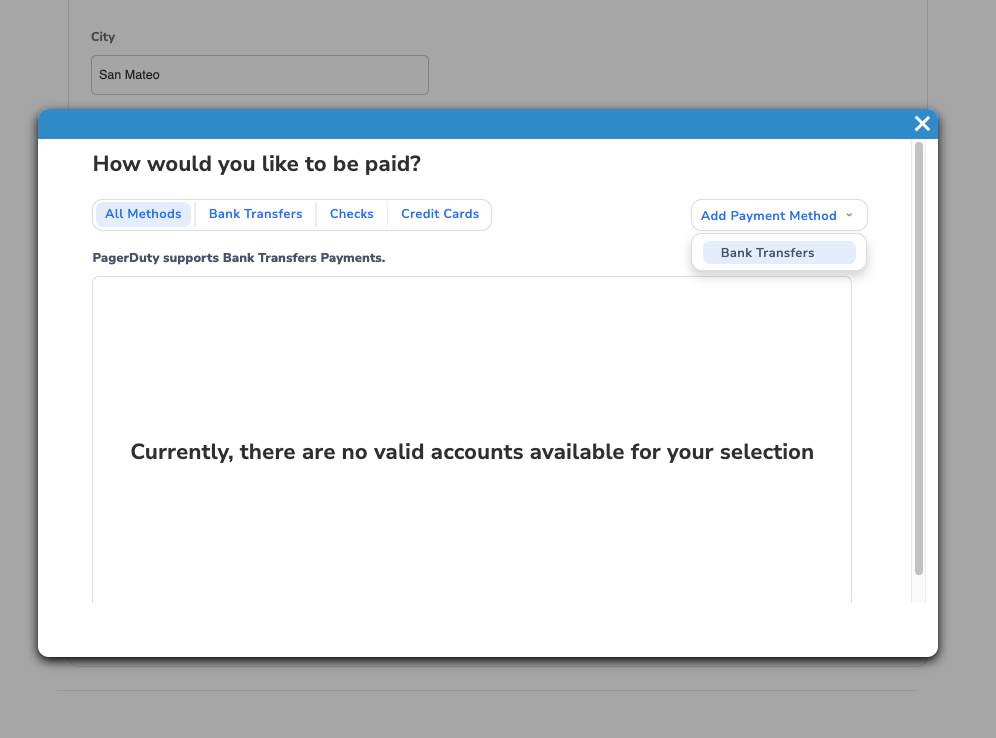
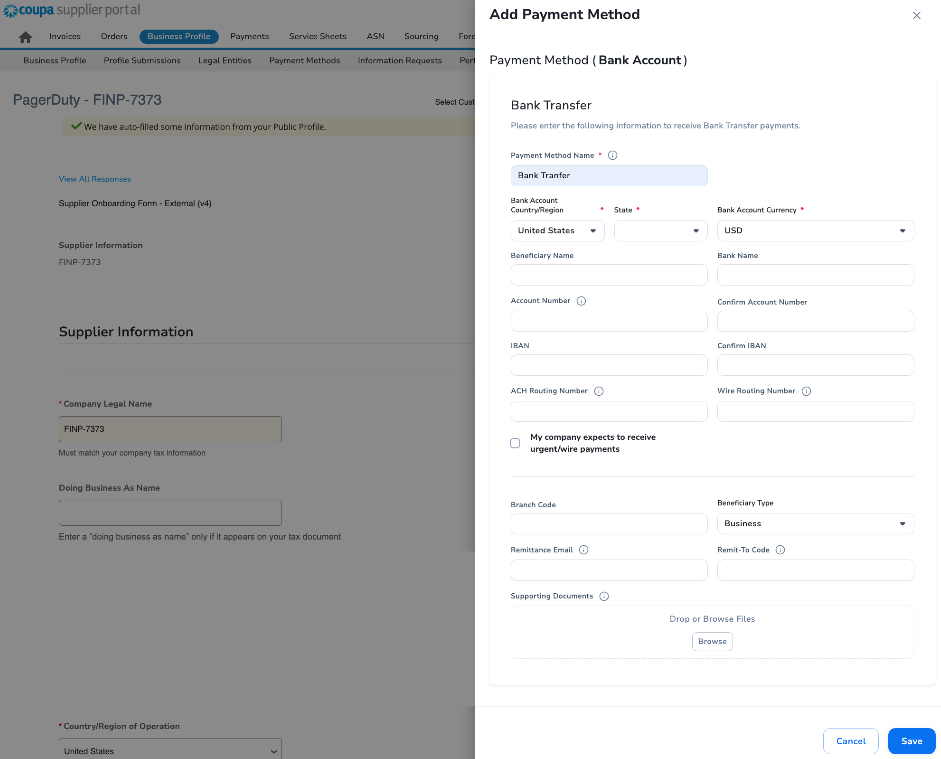
6.3: Enter Your Bank Information
- Payment Method Name: Enter “Bank Transfer”.
- Bank Account Country/Region: Specify the country or region where your bank operates.
- Bank Account Currency: Select the currency in which you will receive payments.
- Beneficiary Name: Enter your company's name exactly as it appears on your bank account. This must match the legal name provided in the Coupa Supplier Portal and on your tax documents. Please note, PagerDuty cannot issue payments to third parties.
- Bank Name: Enter the name of your bank. Do not enter the name of an intermediary bank.
Payment Information Requirements by Country
- United States: Account Number + Routing Number + SWIFT/BIC Code
- European Union: IBAN + SWIFT/BIC Code
- United Kingdom: Account Number + IBAN + Sort Code + SWIFT/BIC Code
- Canada: Account Number + Transit Number + SWIFT/BIC Code
- Australia: Account Number + BSB Number + SWIFT/BIC Code
- Japan: Account Number (7 digits) + Bank Code (7 digits - Zengin Code = Bank Code of 4 digits) + Branch Code (3 digits) + SWIFT/BIC Code
- Singapore: Account Number + Bank Code + Branch Code + SWIFT/BIC Code
- Hong Kong: Account Number + Bank Code + Branch Code + SWIFT/BIC Code
- China: Account Number + SWIFT/BIC Code
- South Korea: Account Number + Bank Code + SWIFT/BIC Code
- India: Account Number + IFSC Code (11 characters) + SWIFT/BIC Code
- Thailand: Account Number + Bank Code + Branch Code + SWIFT/BIC Code
- Malaysia: Account Number + Bank Code + SWIFT/BIC Code
- Philippines: Account Number + SWIFT/BIC Code
- Indonesia: Account Number + Bank Code + SWIFT/BIC Code
- Vietnam: Account Number + Branch Code + SWIFT Code
- Taiwan: Account Number + Bank Code + SWIFT/BIC Code
Remittance Email: Enter the email address where you would like to receive your payment remittance advice.
Supporting Documents: Upload your company's official bank letter in the designated area. Please make sure all payment details you provide are clearly shown in this document, and that the document is issued by your bank.
After entering all the information, click Submit. You'll see a confirmation message - select Close to continue filling out the onboarding form.
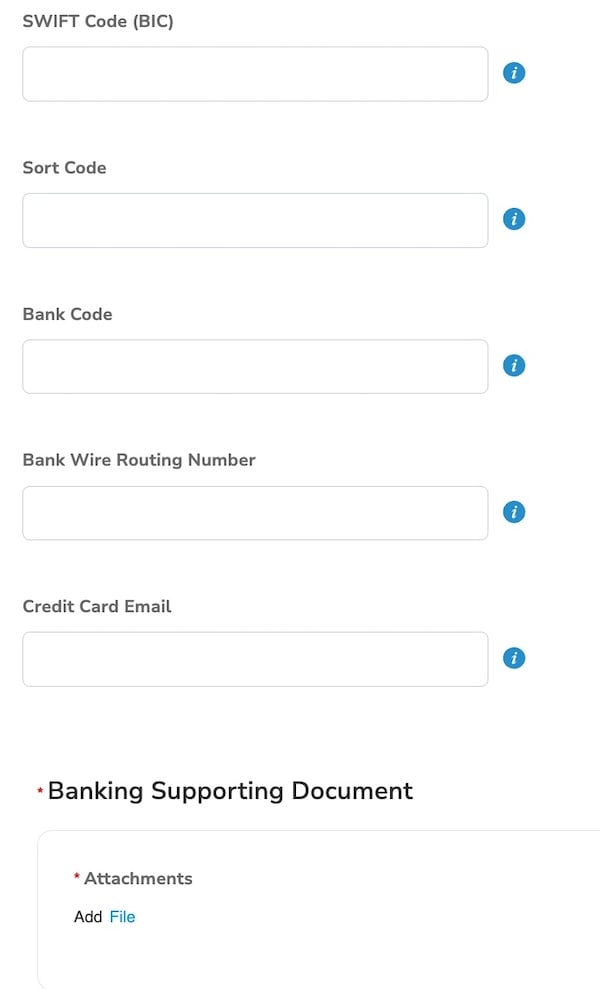
Note: Scroll to the SWIFT/BIC field in the Payment Information section and enter any missing payment details for your company. Make sure the information matches the requirements listed in the “Payment Information Requirements by Country”.
7: Tax information
For US Suppliers:
The US supplier must provide the W-9 Form and fill the below information accordingly.
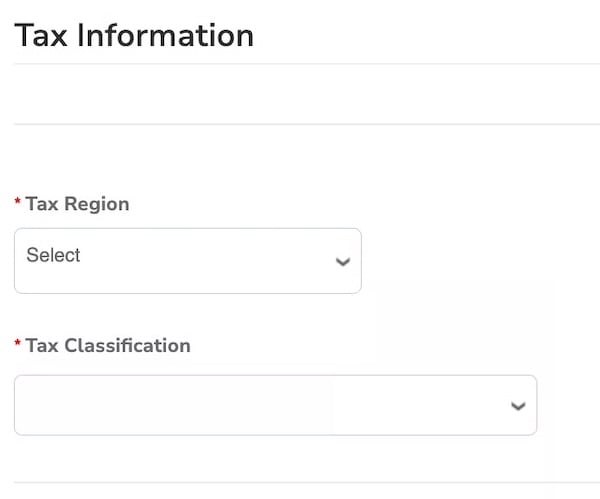
- Tax Region: Select “United States”
- Tax Classification: Select your company tax classification as stated in the federal tax form.
- Federal Tax ID: Enter your company tax ID as stated in the federal tax form.
- Attachments: Attach your company W-9 Form.
For International Suppliers:
Tax documentation requirements for international supplier:
- International suppliers doing business in the US: Please provide your company’s W-8 form.
- Japan suppliers: No tax document is required.
- Suppliers from all other countries: Please upload your official government tax document in the payment information section > “Banking Supporting Document” > “Attachments”. The document must clearly show your company’s Tax ID and primary address. Examples include:
- Chile: RUT (Rol Único Tributario)
- Portugal: Certidão Permanente
- UK: UTR (Unique Taxpayer Reference)
- Australia: ABN (Australian Business Number)
Tax Region: Select “International”.
International Tax ID: Add your company Tax ID Number.