- PagerDuty /
- PagerDuty Supplier Hub /
- Submitting invoices
Submitting invoices in Coupa Supplier Portal (CSP)
Submitting invoices through the Coupa Supplier Portal (CSP) allows for faster invoice processing, automated invoice to purchase order matching, and visibility into invoice status.
All invoices must be submitted via Coupa Supplier Portal (CSP)
PagerDuty requires all invoices to be submitted through the Coupa Supplier Portal (CSP). CSP is our primary platform for invoice submission, and all invoices must be entered directly into the portal.
Why use CSP?
- Guaranteed delivery of your invoices.
- Reduced risk of late payments.
- Real-time visibility into invoice status.
- Improved communication, with fewer calls and emails neede.
Using CSP ensures a faster, more reliable invoicing process for everyone.
No PO, No Pay
All invoices must be submitted via Coupa Supplier Portal
PagerDuty follows a strict No Purchase Order – No Pay policy.
A formal Purchase Order (PO) must be issued by PagerDuty before any work, projects, hardware, software, or services are provided. As a supplier, always ensure you have a valid PO, or request one from your PagerDuty business contact before delivering any goods or services.
Why this policy?
- POs confirm that services are authorized and approved before work begins.
- Purchase orders speed up payment, since approvals are handled in advance.
- A PO is a legally binding document, ensuring both parties agree on the scope of services and payment terms.
- This policy helps protect both PagerDuty and our suppliers, ensuring a smooth and transparent process for everyone.
Invoicing against a PO
From the Coupa Supplier Portal homepage, click on the Orders tab. You can invoice against a PO by clicking on the Stack of Gold Coins or by clicking into the PO.
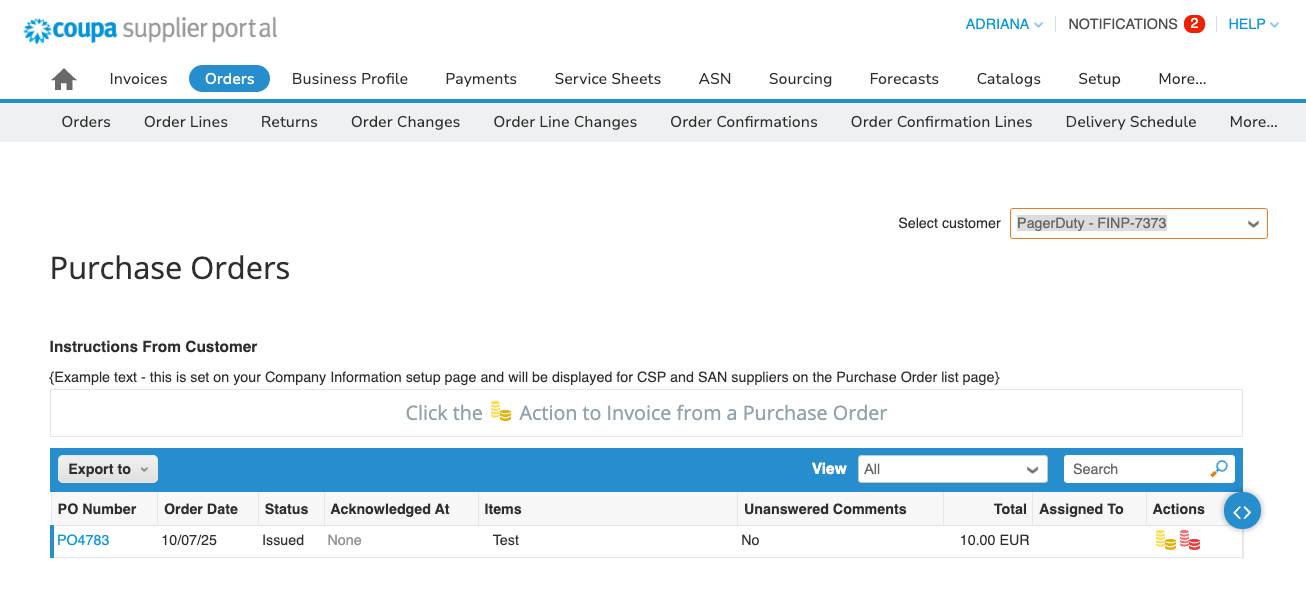
How to submit an invoice in Coupa Supplier Portal (CSP)
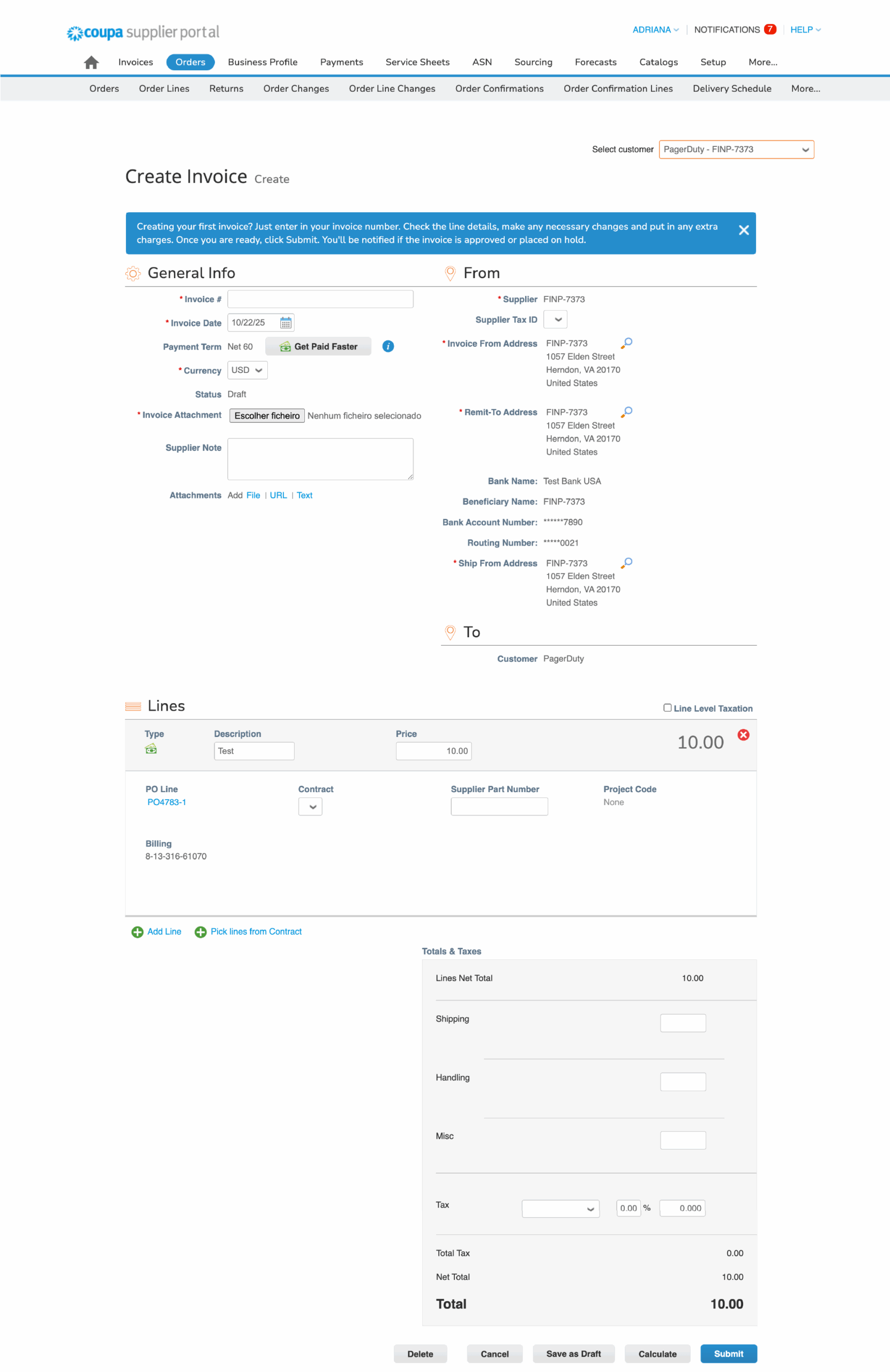
Fields marked with a red asterisk (*) are required.
- Invoice #: Must be unique and not previously used. Coupa will verify if that invoice number has already been used.
- Note: If an invoice is disputed, please issue a corrected invoice by adding a letter to the original invoice number. For example, if the original invoice is INV-1234, the corrected version should be INV-1234A
- Amount: The amount on the invoice line should be the net amount only. Please do not include taxes or shipping costs in this value.
- Note: If the invoice includes tax, please enter the tax amount in the appropriate tax field.
- Invoice Date: Please ensure the date of the invoice is reflected in the document attached. This should be the date the invoice is issued.
- Service Start and End Date: Please fill the start and end date the goods or services are provided.
- Currency: Must align with the currency of the PO.
- Attachments: Add here the invoice. Please ensure the invoice has the payment terms, service start and end date, Billing To (PagerDuty legal entity), currency and if the amount matches the value presented in the PO.
Important: Please ensure that the invoice lines you're submitting in CSP match exactly the descriptions and amounts listed in the PO.
Review invoice and select Submit.
Invoice status
From the Invoices tab, you have visibility to the status of each invoice submitted to PagerDuty.
- Approved: The invoice has received all necessary approvals and is now ready to pay.
- Pending Approval: The invoice is waiting for required approvals. No further action will occur until it’s approved.
- Draft: The invoice is still being prepared and hasn’t been submitted for approval yet. It can be edited or updated before submission
- On Hold: The invoice is paused and cannot move forward until the hold is resolved. This may happen if it’s waiting for a purchase request to be approved or for additional internal information.
- Disputed: There’s an issue with the invoice that must be addressed by the supplier before it can be processed. Common reasons include incomplete services, missing purchase orders, or other discrepancies.
- Rejected: The invoice was not approved and will not be processed further unless it is corrected and resubmitted.