
- PagerDuty /
- Blog /
- Best Practices & Insights /
- Make the most of shift-based schedules
Blog
Make the most of shift-based schedules
by Mandi Walls
July 3, 2026
| 6 min read
We recently updated our Schedules to better reflect how teams are currently managing their on-call responsibilities. Not everyone is working on weekly shifts or providing 24×7 coverage for all of their services, and that should be easy to schedule in our new tooling.
To give you some examples, I’ve gone back through some of the questions we’ve gotten on the PagerDuty Commons over the past couple of years for questions about custom schedules that we weren’t really thinking about. Some of you have some very interesting on-call requirements! Now we can show you how to map these out using Shift-Based Schedules.
If you haven’t seen Shift-Based Schedules yet, you can check out our Behind The Scenes livestream recording on our YouTube Channel.
Three days on-call with no weekends
This was an interesting question: an on-call schedule that should ignore weekends. We came up with a workable schedule in the layered schedules, but shift-based scheduling makes this requirement super easy.
What this user wanted to do:
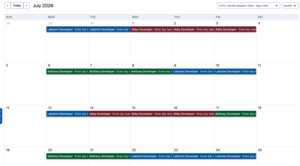
- Abby – Monday, Tuesday, Wednesday
- Bethany – Thursday, Friday, Monday of the following week
- Lakshmi – Tuesday, Wednesday, Thursday
- And so on, repeating, always ignoring the weekends
How we do this in shift-based schedules:
- Create a new schedule, give it a name and description, select a team and “Custom Schedule”
- Create a new rotation
- Give the rotation a name, choose when it takes effect, the timezone, and select “Daily” for the Rotation Type
- For Active Days of the Week, unselect Saturday and Sunday
- For Handoff, update to every 3 days
- Add members in the Members tab
Save your rotation and your schedule, and that’s it! Super easy!
Week on, week off
A new feature of shift-based scheduling is the addition of the new “Unassigned” user. We occasionally use “dummy” users in our rotations to take up space or act as placeholders, and plenty of users have asked for something more flexible.
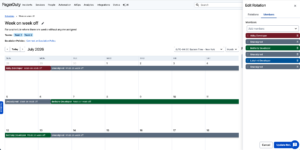
Folks have also asked for schedules that allow for periodic assignments that only cover parts of a month. One user wrote on the forums that they would like a week-on-week-off schedule for their team. This is now a simple setup using the Unassigned user.
- Week 1 – Abby
- Week 2 – Unassigned
- Week 3 – Bethany
- Week 4 – Unassigned
The key here is that Unassigned can be used multiple times in a schedule!
This will again be a Custom Schedule.
- Create a new schedule with a name, description, and team(s), and select Custom
- Create a rotation with the settings you prefer for timezone, days of the week, hours, etc
- Select “Every 1 week” for the Handoff
- On the Members tab, add your team alternating with the Unassigned user
- Save the rotation and the schedule.
Note, though, that the Unassigned user mimics the behavior of having no one on call for that schedule at that time – so PagerDuty looks at the Escalation Policy to figure out what to do if an incident is started while the Unassigned user is active in the schedule:
- Is another user on call from another schedule at the same layer of the escalation policy?
- Is there another layer to escalate to in the policy?
If there are no alternatives, there are no notifications, just as there aren’t when the schedule is empty.
Multiple team members on call with different schedules
You might have different team members with different responsibilities, and creating a schedule with the old methods could be pretty confusing. The best way might have been to use different schedules entirely and then layer them at the escalation policy later.
One example from the forums came through like this:
- Monday-Friday 08:30 – 17:30 – Bethany, Lakshmi, Mandi
- Tuesday-Friday 08:30 – 17:30 – Abby, Bethany, Lakshmi, Mandi
- Saturday-Sunday – Just Abby 24 hours
(Poor Abby!)
This one will be interesting not only because of the timings, but also because everyone will be on-call for all of the shifts.
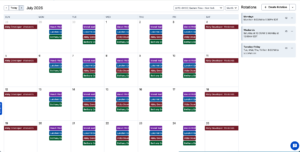
One way to solve this with Shift-Based Schedules is to use three rotations:
- One rotation for Monday, 08:30 to 17:30, with Bethany, Lakshmi, Mandi
- One rotation for Tuesday-Friday, 08:30 to 17:30 with Abby, Bethany, Lakshmi, Mandi
- One rotation for Saturday and Sunday with Abby alone
Here’s the step-by-step:
- Create a new schedule, give it a name and description, select a team and “Custom Schedule”
- Create a new rotation, and give it a name like “Mondays”
- For “Active days of the week,” select only Monday
- For “Active times of day,” edit the times for 8:30 AM to 5:30 PM
- Select “All members are on-call for each shift” in the “Shift assignment type”
- On the Members tab, add the team members who will be on-call on Mondays: Bethany, Lakshmi, Mandi
- Save the rotation
- Create a second rotation, and name it “Tuesdays – Fridays”
- For “Active days of the week,” select Tuesday, Wednesday, Thursday, and Friday
- For “Active times of day,” edit the times for 8:30 AM to 5:30 PM
- Select “All members are on-call for each shift” in the “Shift assignment type”
- On the Members tab, add the team members who will be on-call for Tuesday through Friday: Abby, Bethany, Lakshmi, and Mandi
- Save the rotation
- Add one final rotation, named “Weekends”
- For “Active days of the week,” select only Saturday and Sunday
- This original question did not specify any limit to the weekend hours, so we created this rotation with “All day” for “Active times of day”
- Only one person will be included in this rotation, so the “Shift assignment type” can be either selection until another person is added
- On the Members tab, add the single user, Abby
- Save the rotation and save the schedule.
This puts all three of these unusual combinations into a single schedule to be included in an Escalation Policy as-is.
Shorten a shift on a specific day
Another use for the Unassigned user is to pick up some time when your entire team will be unavailable. You might all be at an event, or have training, and everyone on a schedule will be included, and notifications should be escalated.
You can use the Unassigned user to take over using an Override.
Overrides can be created by clicking on the shift in the calendar, or selecting the down arrow beside “Create Rotation” and selecting “Create Override”. Assign the override to Unassigned and the rest of your team is free!

Summary
We think you’re going to love the new capabilities of Shift-Based Scheduling! Teams with flexible on-call needs can get creative and make use of multiple rotations to provide the experience their services require without a lot of hassle. Stay tuned for our next post about using Custom Shifts in your schedule!
Are you using an interesting schedule that you’d like some help working with in Shift-Based Schedules? Give us a shout on the PagerDuty Commons, and we’ll see what we can come up with!